A further stage in the applications cycle may be to list the documents that the applicant must provide for inspection before their application can be progressed. Information about any pre-requisites or required documentation can be entered using the Requirements tab.
From the Requirements tab, you can:
 Add requirements
To add a requirement:
- Select the required application in the Applications grid.
-
Select the Add Requirement button on the Enquiries and Applications ribbon.

-
Enter the required details in the Requirement Details section.

The fields in the Requirement Details section are described in the following table.
| This field | Holds this information... |
|---|---|
| Requirement Code | The requirement code. Select from the drop-down list. |
| Date Requested | The date the requirement was requested. Select the Calendar button to display the calendar, where you can select the required date. |
| Date Required | The date the requirement must be received by the college. Select the Calendar button to display the calendar, where you can select the required date. |
| Date Received | The date the requirement was received. Select the Calendar button to display the calendar, where you can select the required date. |
| Status Code | The status of the requirement. Select from the drop-down list. |
| Comments | Additional information about the requirement. |
-
Select Save .
The requirement is added and saved in the Requirements grid.
Delete requirements
To delete a requirement:
- Select the required requirement record in the Requirements grid.
-
Select the Delete Requirement button on the Enquiries and Applications ribbon.
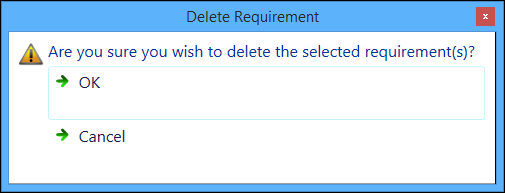
The Delete Requirement message is displayed.
-
Select OK to confirm the deletion of the requirement.
The requirement record is deleted.